How can we help you?
If you are having trouble finding or using something in the portal. We want to help. Take a look at these tutorials for common support needs.
General Users
Atlas Free maintains two websites, the main one, atlasfree.org, is available to the public and shares general information, current campaigns, and public facing events, such as the annual gala. The other website, network.atlasfree.org, was created specifically for Network Members, as the Network Portal. This Network Portal houses information about convenings, as well as resources and funding opportunities made specifically for Network Members.
You are currently on the website made for Network Members. If you are a member and want to access your exclusive Network Services, log in.
If you are looking for the main Atlas Free website, go to atlasfree.org or click the button in the top right corner that says ‘Atlas Free Main.’
Atlas Free serves Network Members in 25+ countries. We are working to make our resources more accessible in the languages of each, starting with Amharic, Chinese (Simplified), Hindi, Nepali, and Spanish. To read this site in your language of choice, click the button in the right hand corner of the site and select the language you prefer in the list.
Atlas Free presta servicios a miembros de la red en más de 25 países. Trabajamos para que nuestros recursos sean más accesibles en los idiomas de cada uno de esos países, empezando por el español. Para leer este sitio en español, haga clic en el botón en la esquina derecha y seleccione “Español”.
Network Members
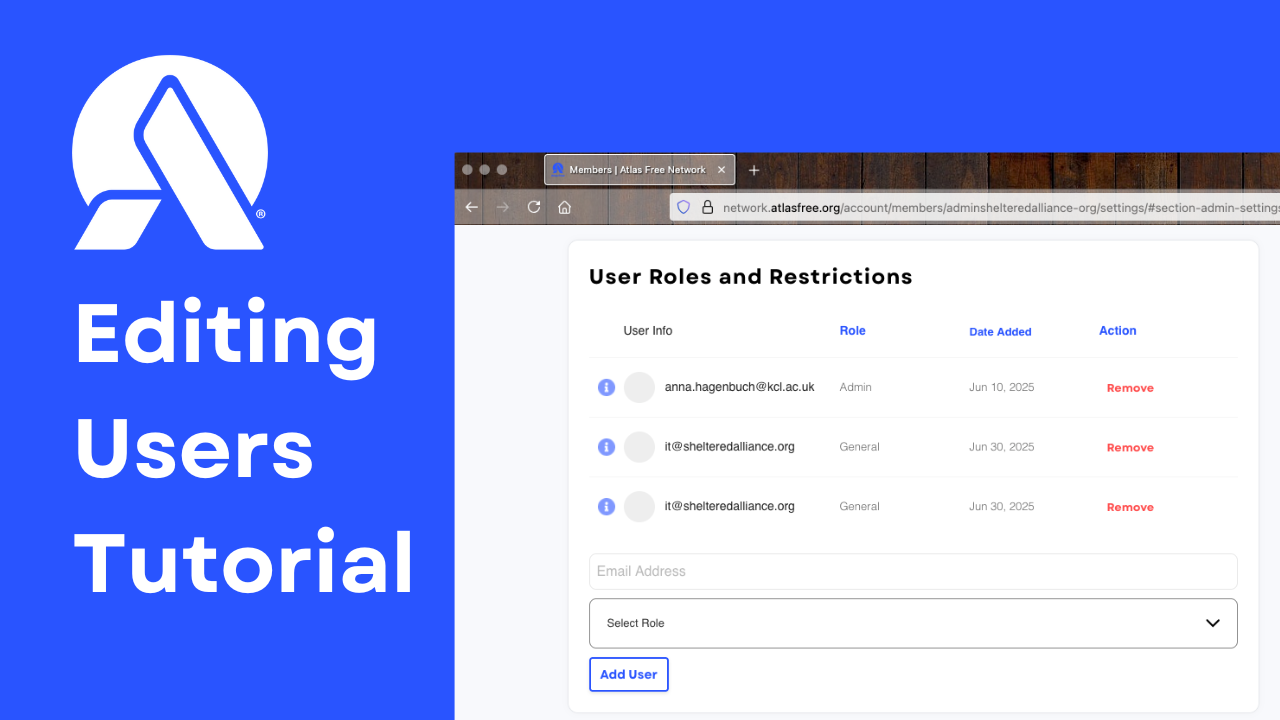
All Network Members are able to add up to 10 users to their account. User management can only be done by someone on the account with the Organization Admin role.
Where to manage users:
- If you haven’t already, log in to your account.
- Select your profile in the top right corner of the screen.
- Select ‘Account Settings’
- In Account Settings, select a section called ‘Admin Settings’
- Scroll down to the section titled ‘User Roles and Restrictions’
To create a new user:
- In the ‘User Roles and Restrictions’ section, fill out the email address, select a role, then click ‘Add User.’ An email will be sent to the new user to complete their new account. Here are the types of roles you can choose from:
- General – users with this role will have access to all Atlas Free Network resources and the Network Portal, but will not be able to edit your organization’s information, payment, users, or job postings.
- Hiring Manager – users with this role will have full access to the Network Portal and your organization’s job postings, but will not be able to edit organizational information, payment information, or users.
- Admin – users with this role can access all information, manage payment information, users, job postings as well as full access to the Network Portal.
To remove a user:
- In the ‘User Roles and Restrictions’ section, find the user you want to remove, then select ‘Remove.’
- A small pop-up will appear to confirm the user has been removed. Hit ‘Ok’ to finish and exit the pop-up.
To change a user’s role:
- In the ‘User Roles and Restrictions’ section, find the user you want to edit, then select the drop down box next to their email address, and click the new role you want to give to the user.
For more help, watch the tutorial on Editing Users.
Only users with the Organization Admin role can make changes to a Network Member Organizational Profile. The Member Directory is a directory that lists all the organizations that are Network Members of Atlas Free. This Directory is only available to Network Members, the general public cannot access this information. The purpose of this directory is to give Network Members the ability to see their fellow members, find common ground, common areas of focus, and possibly make a connection with a fellow member.
To locate the Member Directory:
- If you haven’t already, log in to your account.
- In the header at the top of the website, hover your mouse over ‘Membership.’ In the drop down that appears, select ‘Member Directory.’
To locate where to manage your organization’s Member Directory Profile:
- If you haven’t already, log in to your account.
- Hover your cursor on your profile in the top right corner of the screen.
- In the drop down, select ‘Account’
- In the navigation on the right side of your dashboard, select ‘Account Settings’
- In Account Settings, select a section called ‘Admin Settings’
- Scroll down to the section titled ‘Member Directory Profile’
To update your organization’s Member Directory Profile:
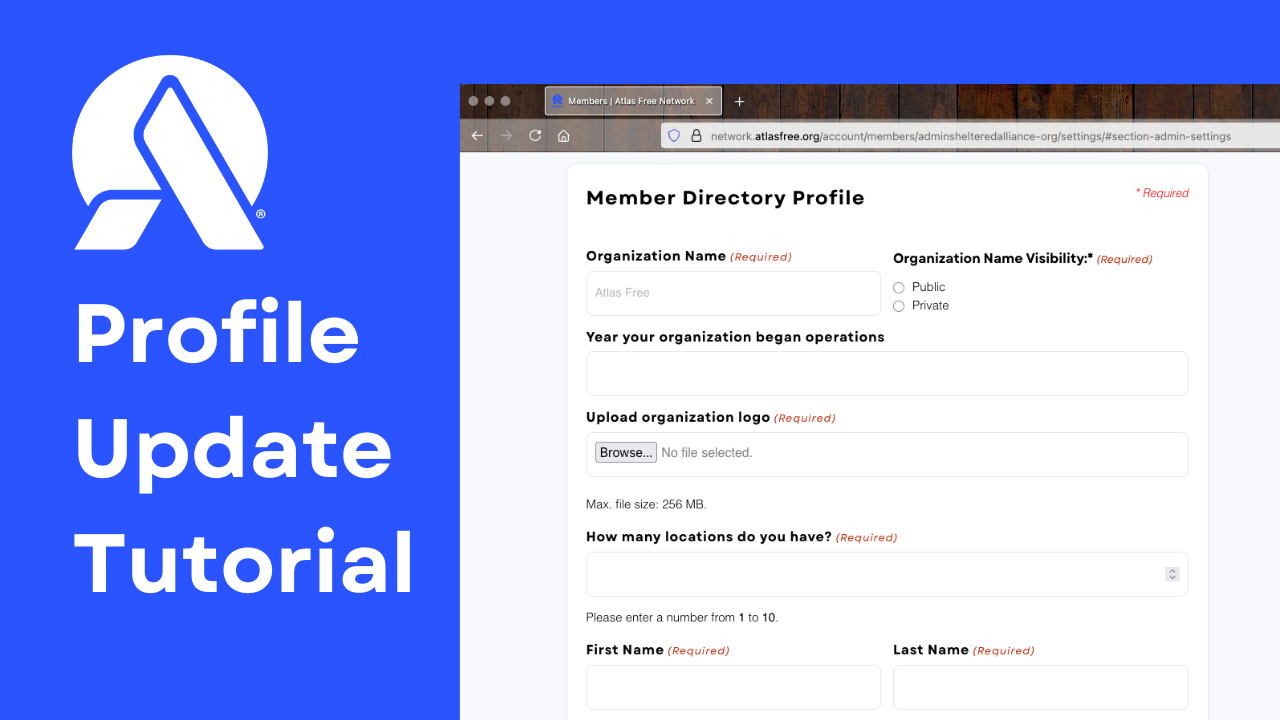
- In the section titled ‘Member Directory Profile,’ fill out all required fields, and once complete, click “Submit”
- Please note: you have the option to make many aspects of your organization’s profile private. Please consider and review these carefully to ensure you maintain security for your organization as needed. Anything marked ‘Public’ will be visible to all members in the Atlas Free Network.
For more help, here is a video tutorial for Updating Your Profile.
Job postings can only be managed by someone with the Organization Admin or Hiring Manager roles.
To locate the Job Dashboard:
- If you haven’t already, log in to your account.
- Hover your cursor on your profile in the top right corner of the screen.
- In the drop down, select ‘Account’
- In the navigation on the right side of your dashboard, select ‘Account Settings’
- In Account Settings, select a section called ‘Job Dashboard’
To Post a Job:
- In the ‘Job Dashboard’ section, select the box with a plus sign that says, ‘Post a New Job’
- Fill out the ‘Job Title’ and ‘Location’ (if it is not an on-site role, fill this section out as ‘Remote’ or perhaps use the main location of the organization).
- Select the relevant job type from the list of options: ‘Full-Time,’ ‘Part-Time,’ ‘Contract,’ or ‘Internship’
- Select the location requirement for this job from the list of options: ‘Remote,’ ‘On-Site,’ or ‘Hybrid’
- Add a job description that accurately describes the job
- You can either select ‘Save as Draft’ if you are not ready to post and want to come back later to complete the posting, or if the job posting is complete, select ‘Post Job.’ Posted jobs will be viewable to the general public on the Job Board.
In June 2024, Atlas Free and an organization called the National Trafficking Sheltered Alliance (NTSA) came to a joint decision to integrate NTSA programs into Atlas Free’s mission. NTSA was a U.S.-focused network that offered resources, training, and a referral system to organizations across the country. In that Integration, both organizations wanted to ensure the support and resources NTSA developed could still be used for the benefit of the Atlas Free Network Members.
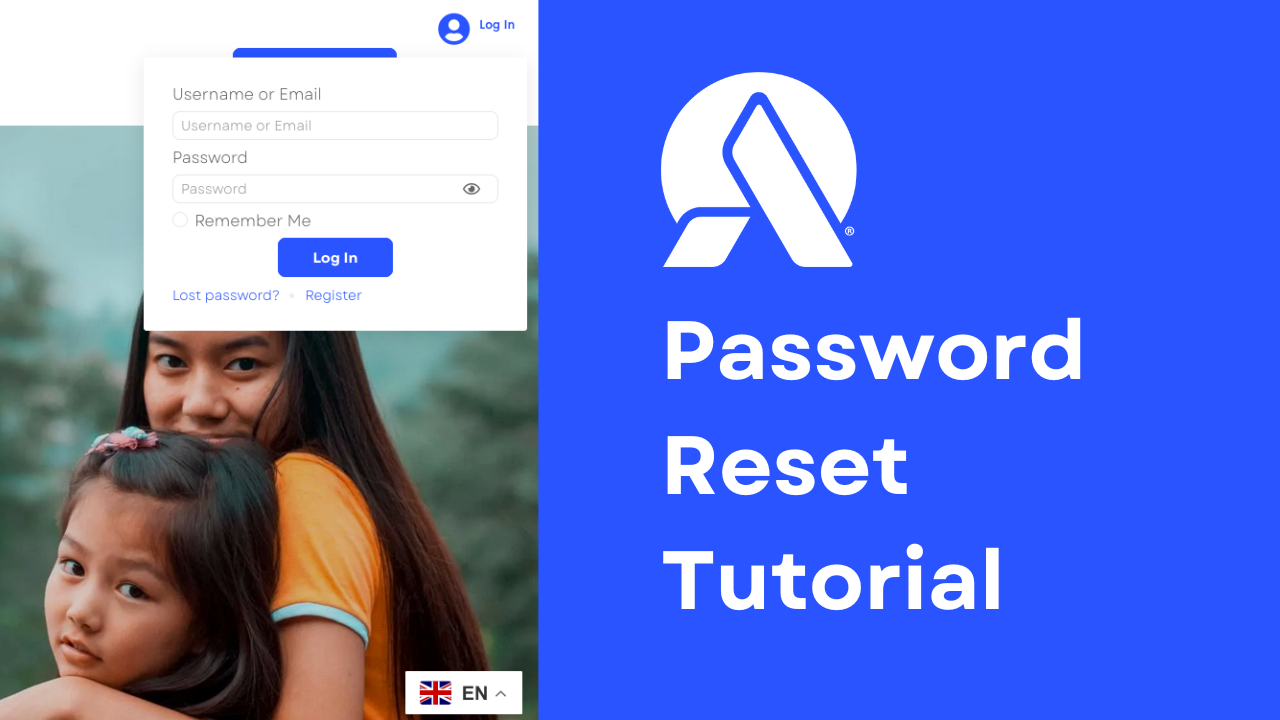
If you are having trouble logging in, you might need to reset your password. Please watch this Password Reset tutorial to learn more about the steps to take.